
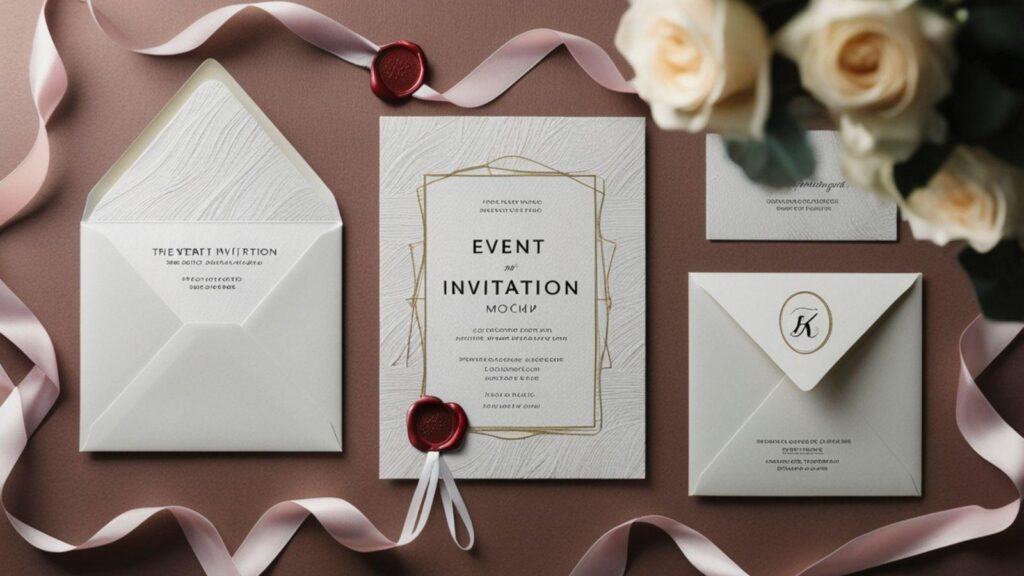
Invitations remain a practical communication tool for weddings, corporate events, nonprofit fundraisers, and private celebrations. They set expectations, signal tone, and provide essential logistical details in a single, structured format. Yet many organizers do not have formal design training—or the time to learn advanced layout software.
Custom invitation makers simplify this process by combining structured templates, controlled typography, print-ready exports, and optional RSVP features. Instead of designing from scratch, users adapt professionally balanced layouts that already account for spacing, hierarchy, and print dimensions.
One accessible starting point is browsing free print out invitations from Adobe Express, which offers editable print templates designed for quick customization. Tools in this category prioritize guided editing and production-ready exports, reducing layout errors while maintaining flexibility. The guide below focuses on workflow checkpoints—what to do, why it matters, and what to verify before sending an invitation to print or distribution.
Step-by-Step How-To Guide for Using Custom Invitation Makers
Step 1: Start With a Structured Template
Goal
Select a professionally formatted layout to avoid spacing and typography mistakes.
How to do it
- Open a template library and filter by event type (wedding, conference, birthday, gala).
- Choose a layout that matches the event’s tone (formal, minimalist, festive, corporate).
- Replace placeholder text with core details: event name, date, time, venue.
- Adjust font sizes only after confirming hierarchy works with your content.
- Use alignment guides to maintain consistent spacing.
What to watch for
- Excessive font changes that disrupt visual balance.
- Decorative fonts that reduce readability.
- Removing margin spacing unintentionally.
- Crowding too much text into small card sizes.
Tool notes
If you need to generate matching QR codes for RSVP links, a dedicated QR code generator such as QR Code Generator can create high-resolution, print-friendly codes that can be uploaded into your design.
Step 2: Establish Information Hierarchy Clearly
Goal
Ensure event details are prioritized logically and easy to scan.
How to do it
- Identify the most important information (usually event title and date).
- Use size contrast: large for title, medium for date/time, smaller for location and notes.
- Break long venue names into multiple lines for clarity.
- Keep spacing consistent between sections.
- Preview the layout at actual size to check legibility.
What to watch for
- Missing RSVP deadlines.
- Overloading the design with secondary details.
- Low contrast between text and background.
- Inconsistent capitalization styles.
Tool notes
For verifying print readability standards, referencing basic typography guidelines from a design education platform like Skillshare can help ensure spacing and contrast are practical for print.
Step 3: Customize Brand or Event Styling
Goal
Align the design with the event theme or brand identity.
How to do it
- Upload a logo or monogram if applicable.
- Adjust color palette to reflect brand or event theme.
- Keep the palette limited to 2–4 coordinated colors.
- Modify background patterns sparingly.
- Check logo resolution at full size before exporting.
What to watch for
- Pixelated logos (should be high resolution).
- Mixing too many color tones.
- Placing text too close to trim edges.
- Overuse of decorative graphics.
Tool notes
If color accuracy is critical, you can reference Pantone’s color guides to confirm tone consistency before submitting files to professional printers.
Step 4: Set Up RSVP Tracking
Goal
Create a structured way to collect attendance confirmations.
How to do it
- Decide whether RSVP will be printed (mail-back card) or digital.
- If digital, create a simple response form.
- Generate a short RSVP URL.
- Add a small RSVP instruction line at the bottom of the invitation.
- Track responses in a centralized spreadsheet.
What to watch for
- Broken or untested links.
- Missing RSVP deadline.
- Overly long URLs that look cluttered.
- Forms requiring unnecessary fields.
Tool notes
If you need structured response tracking, Google Forms can create lightweight RSVP forms with automatic spreadsheet collection.
Step 5: Enable Calendar and Confirmation Integrations
Goal
Make it easy for attendees to confirm and remember the event.
How to do it
- Generate a calendar (.ics) file for digital distribution.
- Include map links for physical venues.
- Send confirmation emails after RSVP.
- Test calendar invites across devices before sending.
- Keep subject lines clear and consistent.
What to watch for
- Incorrect time zones.
- Calendar files that default to the wrong date format.
- Confirmation emails flagged as spam.
- Duplicate RSVP records.
Tool notes
For email-based confirmations, Mailchimp can automate confirmation emails and track open rates without overlapping design functionality.
Step 6: Prepare a Print-Ready Export
Goal
Ensure the invitation prints cleanly and accurately.
How to do it
- Set export resolution to 300 DPI.
- Enable bleed (usually 0.125 inches) if using edge-to-edge color.
- Keep essential text within safe margins.
- Export as a print-ready PDF.
- Review crop marks and preview edges carefully.
What to watch for
- Exporting in web resolution (72 DPI).
- Ignoring bleed requirements.
- Incorrect color mode for printer (RGB vs. CMYK).
- Flattened text layers reducing sharpness.
Tool notes
For checking file properties before submission, Adobe Acrobat Reader can confirm resolution and embedded fonts.
Step 7: Finalize Order and Distribution Details
Goal
Confirm all production and delivery specifications before printing or sharing.
How to do it
- Confirm final card dimensions (e.g., 5×7 inches).
- Select paper stock and finish (matte, gloss, textured).
- Verify quantity and production timelines.
- Double-check spelling and date accuracy.
- Approve printer proofs before full run.
What to watch for
- Quantity miscalculations.
- Last-minute date or venue changes.
- Inconsistent envelope sizing.
- Production timelines too close to event date.
Tool notes
For shipping printed invitations, a carrier like UPS can help estimate delivery timing to avoid last-minute distribution delays.
Common Workflow Variations
Photo-Forward Invitations
Use a large hero image and minimal text. Maintain high-resolution imagery and avoid excessive overlays.
Corporate Event Invitations
Prioritize brand consistency, logo placement, and structured typography. Maintain professional color schemes.
Minimalist Invitations
Limit to two fonts and one accent color. Use generous spacing and clear hierarchy.
Small-Batch or One-Off Events
Export digitally and distribute via email or private link instead of print to reduce production time.
Before You Start Checklist
- Event name confirmed
- Finalized date and time
- Venue address verified
- Guest list estimate
- Brand colors or theme selected
- Logo or image assets in high resolution
- RSVP method decided
- Print size chosen
- Deadline for proofing scheduled
Pre-Export / Pre-Order Checklist
- 300 DPI resolution confirmed
- Bleed enabled if required
- Safe margins respected
- All text proofread
- Fonts embedded in PDF
- Colors checked for print mode
- QR code tested
- RSVP link tested
- Final preview reviewed at full size
Common Issues and Fixes
Low-resolution images
Replace with 300 DPI versions before export.
Text too close to edges
Reposition inside safe margin guides.
Color shift in print
Convert to CMYK if printer requires it.
Cropping errors after print
Enable bleed and review trim guides.
Unreadable decorative fonts
Switch to simpler serif or sans-serif alternatives.
Incorrect RSVP link
Test link from multiple devices before finalizing.
How To Use Custom Invitation Makers: FAQs
Should I start with a template or a blank layout?
Template-first workflows are faster and reduce formatting errors. Blank layouts require more design judgment.
Is print-to-order better than exporting a PDF?
Print-to-order simplifies logistics, while exporting a PDF offers more control over printer selection and paper choice.
What’s the safest file format for printers?
High-resolution PDF with bleed and embedded fonts is widely accepted.
Can I mix digital RSVP with printed invitations?
Yes. A QR code or short link can bridge print and digital tracking effectively.
How do I avoid design mistakes without experience?
Limit font variations, maintain spacing consistency, and rely on structured templates rather than manual layout creation.
More Stories
How Cross-Platform Mobile Apps Connect Gaming Communities Across Devices
How to Build Safer Online Communities: A Trust and Moderation Playbook
SWDRS Coitell Canyon Play: 2026 Market Update, Buy-Rate Analysis, And What Investors Should Do Now