
You’ve generated an AI image that’s almost exactly what you wanted — the composition is right, the style works, the subject is clear. The problem is the resolution. It’s soft, low-detail, or too small for the format you need to publish to.
The instinct is to start over and try to regenerate something better. Often that’s not necessary.
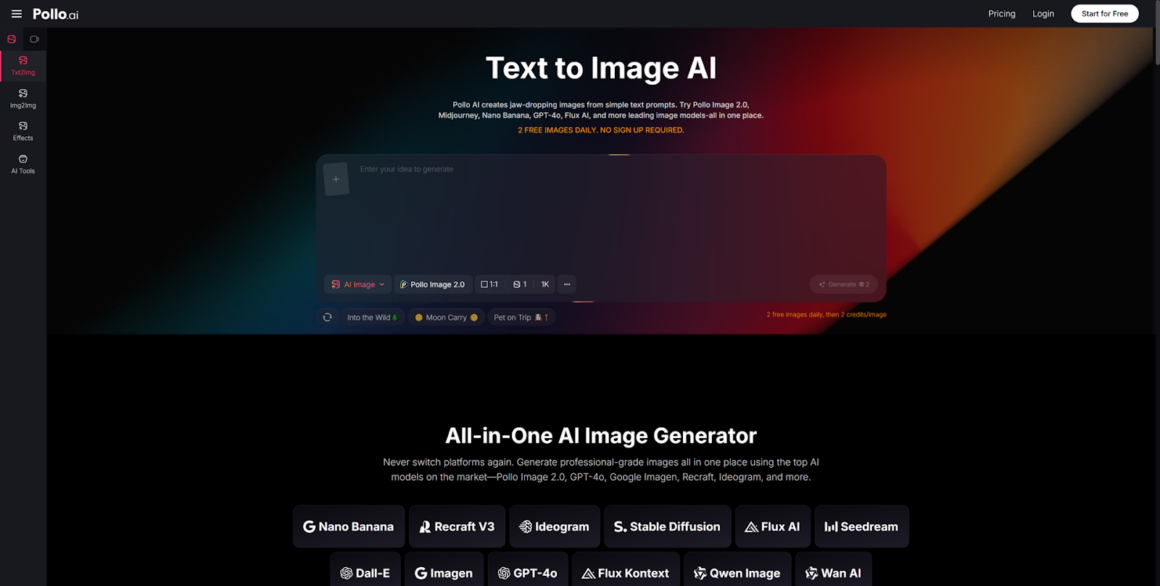
Knowing how to generate cleaner AI images with Pollo AI from the start — and when to apply enhancement tools after the fact — can save you significant time without losing the concept you’ve already developed.
Here’s a practical guide to diagnosing and fixing resolution problems in AI-generated images.
Why AI Images Lose Usefulness at Low Resolution
Low resolution is more than a file size problem. It affects how an image performs in every downstream use case:
- Print limitations: Images below 300dpi at the intended print size will look visibly soft or pixelated — unusable for anything physical.
- Crop problems: A social post that needs a tight crop from a wide image quickly exposes resolution limits. What looked fine at full size falls apart at 1:1 crop.
- Soft details: Faces, textures, and fine linework all suffer when resolution is insufficient. This is especially visible in AI-generated images where detail is already slightly stylized.
- Perceived quality: Even in digital contexts where technical resolution is less critical, soft AI images read as lower quality to viewers — which affects trust and attention.
Most AI generators produce images in a fixed resolution range. Knowing that range helps you set expectations before generating — and plan your enhancement workflow before you need it.
Improve Results Before Reaching for Upscaling
The most effective resolution fix is producing a higher-quality image in the first place. A few prompt-side adjustments that consistently improve sharpness and detail:
Be more specific about your subject.
“A portrait of a woman” gives the model a lot of freedom to fill in details however it sees fit. “A portrait of a woman with defined cheekbones, dark brown eyes, and short natural hair, soft studio lighting” gives it much less ambiguity to hide behind.
Simplify composition.
Overly complex prompts with multiple subjects, environments, and style tags compete for the model’s attention. Simpler, cleaner compositions tend to resolve with more detail in the areas that matter.
Avoid conflicting instructions.
Asking for “high detail” and “impressionist painterly style” in the same prompt creates a contradiction. Painterly styles inherently reduce detail. Choose what the image needs to be — detailed or stylized — and prompt accordingly.
Reduce competing style layers.
The more style adjectives you stack, the more the model averages them out. One clear style direction generally produces sharper, more intentional outputs than four style modifiers pulling in different directions.
When Upscaling Is Enough — and When It Isn’t
Upscaling increases the pixel dimensions of an image, but it doesn’t always increase the actual useful detail. Understanding the difference matters:
When upscaling works well:
- The original image is compositionally strong but simply needs to be larger for a specific format
- The content has clean, simple elements — solid color areas, simple geometric shapes, broad color blocks
- You’re upscaling modestly (e.g., doubling resolution rather than 8×)
When upscaling falls short:
- The original image has weak, blurry, or low-coherence detail — upscaling makes those problems bigger, not smaller
- Faces and hands in the original are already distorted — AI upscaling can correct some of this, but not reliably
- You need significant magnification for large-format print — upscaling has practical limits before quality degrades noticeably
The key test: upscaling can make a good image bigger. It can’t make a bad image good.
Tools and Workflows for Enhancement
When the image concept is solid but the file quality needs work, dedicated enhancement tools fill the gap.
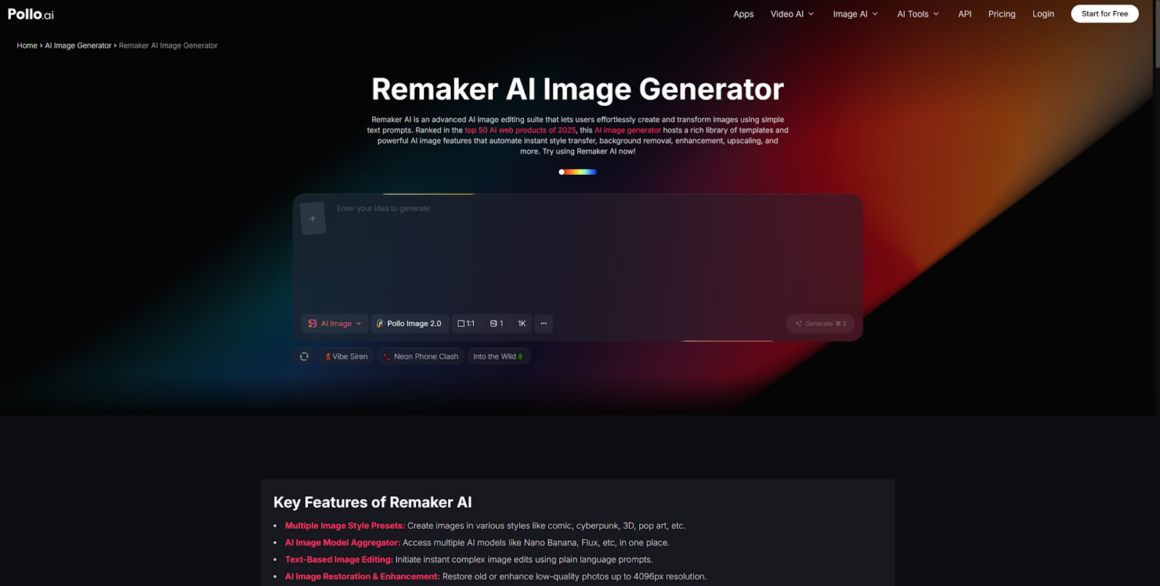
Remaker AI upscaling tools are built specifically for this kind of enhancement workflow — increasing resolution, improving sharpness, and recovering fine details from AI-generated outputs. For users who regularly generate images and need to prepare them for real-world use, an upscaling step as part of the standard export workflow (rather than an afterthought) makes the entire pipeline more reliable.
Enhancement and generation serve different purposes. Using Pollo AI for initial generation — where prompt fidelity and first-pass quality are strong — and then routing strong outputs through an enhancement tool for final sizing and sharpening is a two-step workflow that consistently outperforms trying to do both in one place.
Best Practices for Export and Final Use
Before finalizing any AI-generated image for publication, match the export specification to the actual use case:
- Social media: Export at native resolution (typically 1080px minimum on the shortest edge). Avoid compressing the file more than necessary before upload — platforms will do their own compression.
- Web: 72–96dpi is sufficient for screen display, but export at a larger pixel dimension than the display size so the image stays sharp on high-density (Retina) screens.
- Presentation decks: 96–150dpi at the display resolution works for most presentation software. Export as PNG rather than JPEG for cleaner edges on graphic elements.
- Light print use: For small-format print (business cards, postcards), target 300dpi at the intended print size. For large-format, actual print specs apply — but AI images often can’t reliably reach those without significant upscaling.
When in doubt, export at the highest resolution the tool offers and scale down from there. Downscaling preserves quality; upscaling after a lossy export doesn’t.
Fix the Workflow, Not Just the File Size
The most common resolution mistake is treating the problem as a post-generation issue rather than a generation-stage decision. Cleaner prompts produce sharper images. Simpler compositions hold detail better. And starting with a tool that outputs reasonable resolution on the first pass reduces the amount of enhancement work you need to do afterward.
Pollo AI’s image generator is a useful starting point for generating images with strong first-pass quality. When you do need to prepare an image for specific format requirements, an enhancement tool for upscaling fills the gap efficiently. The goal is a reliable pipeline — generate well, enhance where needed, export to spec.
More Stories
The Rise of Real-Time Interactive Platforms in Online Communities
Quantum-Resistant Encryption Is The New Defensive Shield For 2026 Data Security
Ultimate Plinko Casino Games That Maximize Your Winning Potential